WatchOver

Create Account

Join WatchOver to track your devices

Reset Password

Enter your email address and we'll send you a link to reset your password.

User Guide

Select a topic to learn more

1

Creating Account

Follow these steps to create your WatchOver account:

1

Enter Email

Provide a valid email address that you have access to.

2

Create Password

Choose a secure password with at least 6 characters.

3

Confirm Password

Re-enter your password to confirm it matches.

4

Verify Email

Check your inbox and click the verification link we send you.

5

Login

Once verified, return to the login page and sign in with your credentials.
2

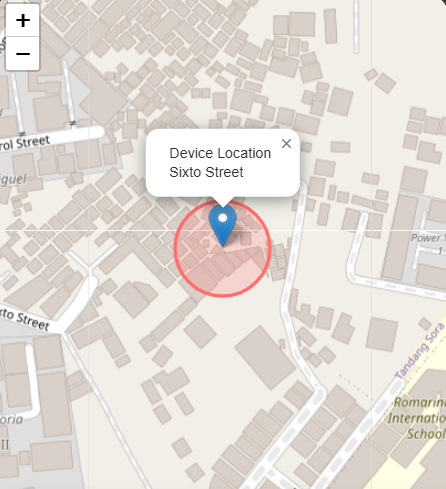
Dashboard Map

The map displays real-time location data for your device:

Map View

Red Pin Marker

Shows the current location of your device. This updates in real-time when new GPS data is received.

Geofence Circle

The circle represents your safe zone boundary. You'll be notified if the device leaves this area.

3

Dashboard Panel

The dashboard panel displays all your device information:

Device

Device Section

At the top, you can add or remove your WatchOver devices.

Wearer

Wearer Name

The name of the person wearing the device. You can customize this.

Location

Current Location

Shows the address or coordinates of the device's latest position.

Time

Time of Last Update

Displays when the device last transmitted location data.

Battery

Battery Level

Shows the remaining battery percentage of your device.

Status

Device Status

Indicates whether the device is Online or Offline.

4

Dashboard Buttons

The dashboard has 3 action buttons:

Vibrate

Sends a vibration alert to the device for 10 seconds. Useful for getting the wearer's attention.

Change Device Password

Update the password for your device to enhance security.

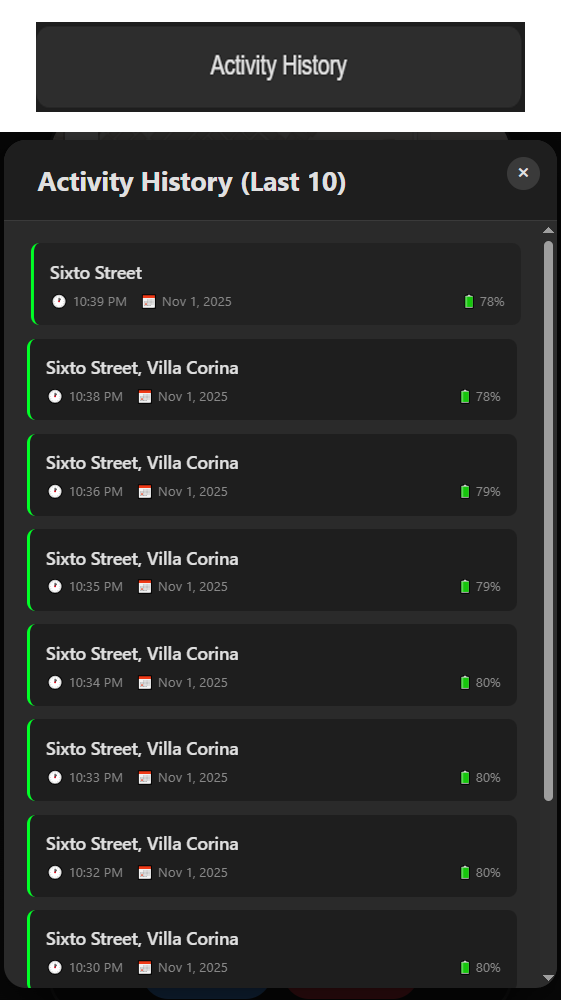
Activity History

View past location records and movement history of your device.

Activity History
5

Bottom Navigation

The bottom navigation bar has 3 buttons:

Bottom Navigation

Geofence

Click to draw a circle on the map defining a safe zone for your device.

Change Account Password

Update your account login password for security.

Logout

Securely sign out of your WatchOver account.

6

Translation

WatchOver supports multiple languages:

EN
English
PH
Tagalog (Filipino)

Use the language buttons at the top right corner of the screen to switch between English and Tagalog.

7

Add / Remove Device

Adding a Device

1

Find the Device ID sticker on the back of your WatchOver device.

2

Click the "Add Device" button in the dashboard.

3

Enter the Device ID and default password (12345).

4

You will be prompted to change the device password immediately.

Removing a Device

1

Click the "X" button next to the device name in the device list.

2

Confirm the removal when prompted.

8

Forgot Password

If you forgot your account password, follow these steps to recover it:

1

Click "Forgot Password?" on the login page.

2

Enter the email address associated with your account.

3

Check your inbox for a password reset link.

4

Click the link and create a new password.

5

Return to the login page and sign in with your new password.

If you don't see the email, check your spam folder.

Check Your Email!

We've sent a verification link to your email address. Please check your inbox and click the link to activate your account.

Don't see the email? Check your spam folder.